 MareStare
 Derpibooru Autocompletion
December 26, 2025This article explains the mechanics of Derpibooru’s autocompletion so you can make the most of it. No programming knowledge is required to follow along!
I’m not the author of the main completions algorithm design, but I did considerable improvements of this feature at the beginning of 2025. It’s a little overdue to talk about it now, but better late than never!
Enable Autocompletion
It is very likely you don’t even know this feature exists, because it’s not enabled by default. You can enable it via Settings > Local > Enable search auto-completion.
There was an attempt to enable it by default for everyone in 2024, but it failed. Users were complaining about losing their native browser search history completions like the ones below.
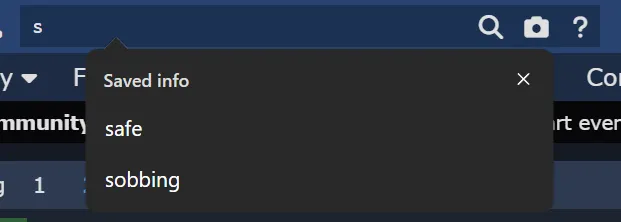
Example native browser search history completions on Edge.
Therefore, Derpibooru’s own completions were disabled by default.
I’ve implemented search history into Derpibooru’s own autocompletions in early 2025 as a countermeasure. The autocompletion feature has been left disabled by default so far for the site to collect the search history that will be displayed to you once you enable autocompletion for the first time. I expect at some point autocompletion and search history will be enabled by default again.
Fast Completions
Autocompletion on Derpibooru works very fast. Faster than other websites usually do (e.g. e621, danbooru). This is all thanks to a mechanism highly optimized for the most popular tags.
Once you start interacting with the search input, your browser downloads a small file. It contains the list of top 50_000 most popular tags on Derpibooru. This file uses a special efficient format that allows the web page to suggest tags as you type with instant feedback.

Completions file download can be seen in the browser’s dev tools network tab (Ctrl+Shift+I).
Slow Completions
There are approximately 750_000 tags on Derpibooru at the time of this writing. When you search for a tag, that isn’t included in the top 50_000 tags, the website can’t use the completions file. Your browser will instead do slow requests to the Derpibrooru’s server to search for unpopular tags. This may be a little confusing until you know what this means in practice.
For example, let’s try searching for an unpopular mare such as lucky dreams.
Only 10 most relevant tag suggestions are shown to you as you type. At first, only results from the top 50_000 tags are shown (fast completions). Once there are no results in the first 50_000 tags, slow completions kick in and start showing new results fetched from the server.
This algorithm, however, has a flaw. When you type lucky dr, the only two search results shown to you are artist:lucky dragoness and artist:lucky dragon. You aren’t shown any suggestions from the less popular tags until you exhaust all the results from the top 50_000 tags.
It is only when you type lucky dre that the slow completions start showing results from the less popular tags, including lucky dreams. Beware of this problem when searching for less popular tags! Don’t give up on your search when you don’t see the tag you want right away; just type a few more letters to force the slow completions to kick in.
This flaw should really be fixed in the future, but for now, this is how the autocompletion works!
Text Match Strategy
Autocompletion currently searches for tags that begin with the typed text. It’s a really dumb and simple strategy. For example cut will match cutie mark, but mar won’t match cutie mark, because tags aren’t split into words when searching.
Tag Prefixes
If you are searching for an artist or an oc tag, you don’t have to type the artist: or oc: tag prefix. Autocompletion searches for a match in the part of the tags both before and after the colon :.
For example, if you type sleepyh, you’ll see both artist:sleepyhoers and oc:sleepyhead suggestions.
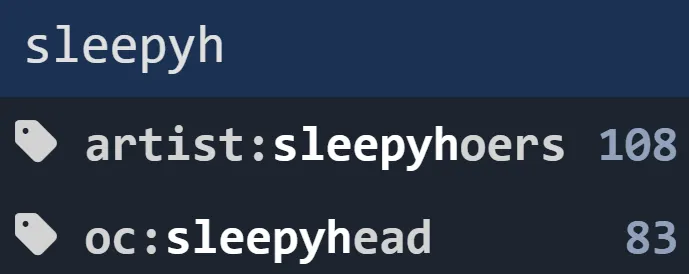
Search history
Search history is stored on your device only. It is never stored on Derpibooru’s server. If you use a phone and a computer to access Derpibooru, then they will both have separate search histories.
This is a little inconvenient, but this is all in the sake of your privacy. Derpibooru does not to store personal data like your search history to avoid all the pain, responsibility, and attack vectors associated with a sensitive thing like that.
Only 500 most recent searches are stored in the history. You can view them in your browser’s developer tools. For example, in Chrome, this can be found in Application > Local Storage > https://derpibooru.org > Key: search-history.
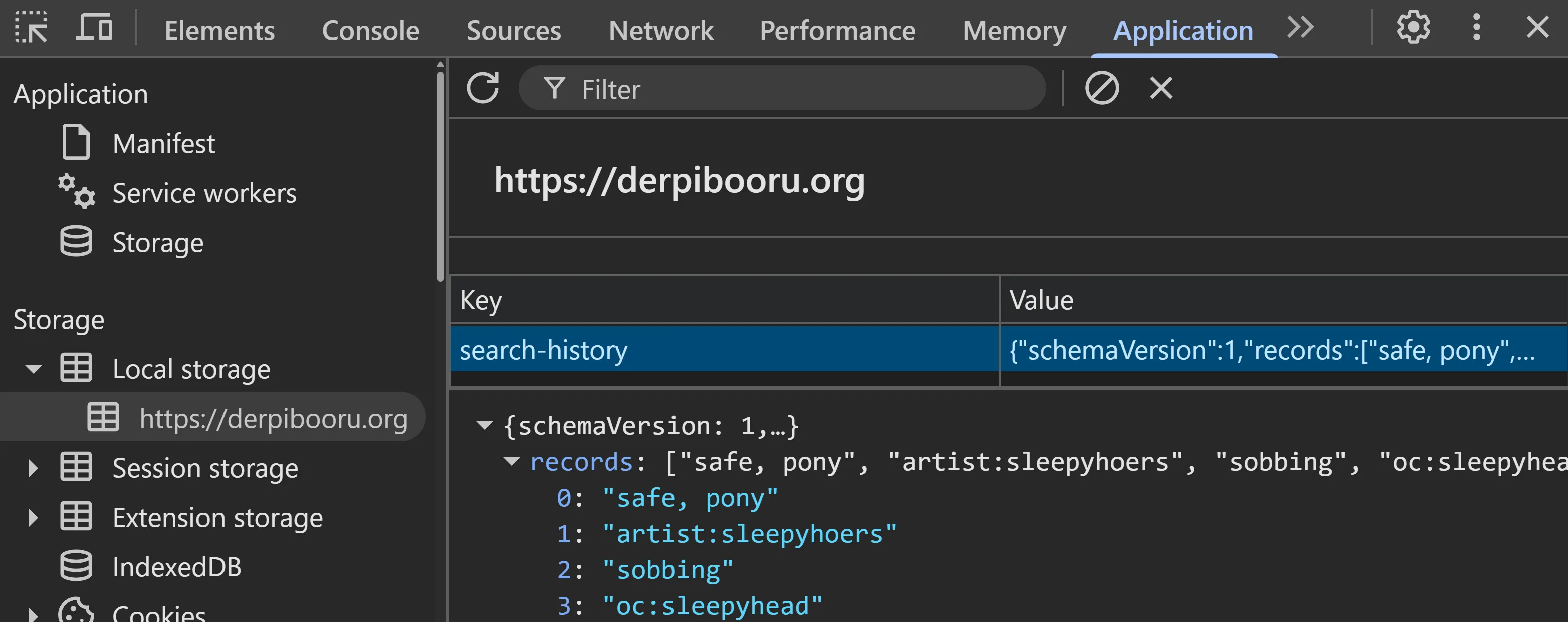
Use Ctrl+Shift+I to open dev tools in Chrome or Firefox.
You can completely wipe your search history by deleting this item from the local storage. Just right click on it, select Delete, and reload the page. Nothing should break!
Keyboard Shortcuts
You can use the arrow keys (↑ and ↓) or your mouse to select a suggestion. You can combine arrow keys with Ctrl to jump through the block of history or tag suggestions.
When you click or press Enter on a search history suggestion, you are immediately taken to the search results page for that history item. To avoid submitting the search for a history item, use Shift + Enter or Shift + LMB (click) instead.
When you click or press Enter on a regular (non-history) tag suggestion, the tag will be appended to the search input without submitting the search query. This allows you to continue building a complex search query step by step. If you want to accept a regular tag suggestion and immediately search for it, then use Ctrl + Enter or Ctrl + LMB (click) when selecting it.
Closing Thoughts
Hopefully, now you have a better understanding of how Derpibooru’s autocompletion works! If you have friends who use Derpibooru, consider sharing this with them. They might want to enable autocompletion too! If you notice any bugs, feel free to report them in this forum thread on Derpibooru.
This article has been focused on Derpibooru exclusively, but Derpibooru is not the only one! It is powered by Philomena software, which is also used by sites like Furbooru, and Tantabus. Everything mentioned in this article applies to those sites as well.
If you are a developer, consider contributing to Philomena! It is fully open source. There are still quite a few things to improve in the autocompletion feature as you might have noticed, and your help would be greatly appreciated! My personal focus has shifted to drawing lately, but I’m still around to help! Feel free to reach out to Philomena devs in #philomena-dev channel on Derpibooru Discord.